
How to Check if an SSL Certificate Is Expired, Domain Matches, and Chain Is Valid
An SSL certificate looks like a boring green padlock in your browser. The moment it expires, or the domain on it does not match the host, or the chain has a missing intermediate, that padlock turns into a scary warning and half your visitors leave. Most outages are not caused by a server crash — they are caused by a certificate nobody checked in time. This is the exact checklist I run on any site I take over, and it takes about two minutes.
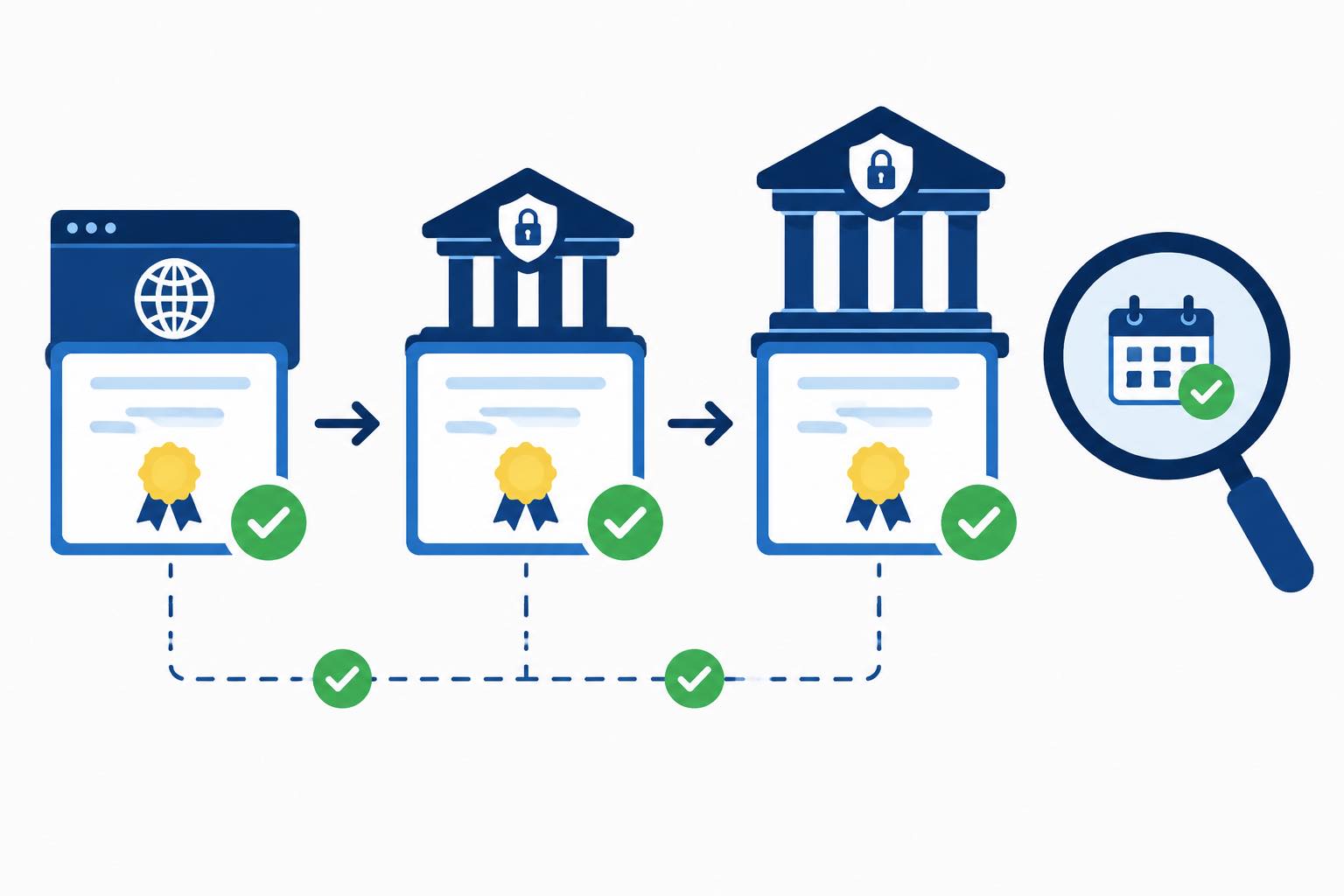
Step 1 — Pull the certificate from the live host
Do not trust the file on disk. The certificate that matters is the one the server actually presents to the outside world. A quick way to see it:
echo | openssl s_client -connect example.com:443 -servername example.com 2>/dev/null \
  | openssl x509 -noout -subject -issuer -dates -ext subjectAltName
That command gives you three things you need at a glance: who the certificate is issued to, who issued it, and the validity window. If the connection fails here, the problem is already bigger than the certificate — firewall, SNI or a wrong port are more likely than an expired cert.
Step 2 — Check the expiry date
Look at notAfter. Certificates short of 30 days should make you nervous, under 7 days is a fire drill, and anything already past notAfter is broken right now. Set a calendar reminder 30 and 7 days out, even if you use Let's Encrypt auto-renew. Auto-renew stops working for exactly the reason you would expect it to work: rate limits, DNS issues, or a webroot that changed.
Also check notBefore. A fresh certificate that was issued in the last few minutes but your browser still shows an old chain usually means a CDN or load balancer has cached the old handshake.
Step 3 — Verify the domain matches
A valid certificate for example.com does not cover www.example.com unless the Subject Alternative Name list says so. Look at the subjectAltName output. It should list every hostname you actually serve: root domain, www, api, whatever subdomain people really use.
Mismatch errors usually show up in two situations. One, you added a new subdomain and forgot to reissue the cert. Two, a redirect sends users to a host the cert does not cover. If your main domain is fine but the redirect target throws a warning, fix the redirect or extend the cert — do not just tell users to click through the warning.
Step 4 — Walk the certificate chain
This is the one people skip, and it bites them. A server only sends the leaf certificate. Your browser needs the intermediate CAs to build a trust path back to a root it already has bundled.
If the server forgets to send the intermediate, modern Chrome may still work because it fetches the missing cert itself. Other browsers, older mobile clients, and command-line tools will not. The result is the weird failure where your site loads fine but a user on an older phone sees a broken warning.
The same openssl command above will show the chain. If you only see one certificate in the output instead of two or three, your server is not sending intermediates. Fix it in the web server config — combine the leaf and intermediate into one PEM file, do not rely on the browser to patch it for you.
Step 5 — Compare what you think is deployed vs what is live
After you reissue, do not declare victory from the server itself. Hit the public hostname from an outside network and repeat step 1. Caches, CDN edge nodes and load balancers all love to keep old certificates alive for hours. The live handshake is the source of truth, not the file you just uploaded.
When something still looks wrong
If the date is fine, the domain matches, the chain is complete, but a user still sees a warning, suspect clock skew on the client, a corporate TLS proxy doing interception, or an HSTS pin that has gone stale. Those are rarer, but they show up exactly when everything on your side looks correct.
A two-minute certificate check once a month — and one after every deploy — prevents the kind of outage that pager alerts love to hand you on a weekend.